
What is HTML?
1. What is HTML?
HyperText Markup Language
HTML stands for HyperText Markup Language. HTML is the backbone of every web page you see online. It provides the structure and meaning of content by defining elements like headings, paragraphs, images, and links. Without HTML, web browsers wouldn’t know how to display text, media, or navigation.
Whether you’re building a personal blog, an online store, or a full web application, HTML is your starting point. It’s simple to learn, yet essential for everything that follows in web development — including CSS and JavaScript.
📖Let’s break that down
- HyperText: This means text with links. On the internet, hyperlinks allow you to jump from one page to another — they form the “web” in “World Wide Web.”
- Markup: Markup languages add meaning to content. In HTML, we “mark up” text by wrapping it in tags to say what that text is (e.g., heading, paragraph, image).
- Language: It’s not a programming language like Python or JavaScript — it doesn’t “do” things, it just describes the content and structure of a page.
2. Why is HTML important?
Everything you see on a webpage — titles, paragraphs, images, tables, forms — is made using HTML.
Whether you’re:
- Creating a basic website
- Customizing a blog
- Learning web design
- Working with email templates
- Or embedding things in WordPress
…HTML is the essential skill to start with.
Even when using modern tools like WordPress, Wix, or Squarespace, knowing basic HTML helps you:
- Fix errors
- Add custom content
- Make your site more professional
3. How does HTML work?
HTML uses tags to describe elements. These tags are wrapped in angle brackets like this:
<tagname>content</tagname> <!-- html tag -->
- <p>Hello World.</p>
- <p> is the opening tag
- </p> is the closing tag
- Hello World. is the content
Together, this is an HTML element.
4. Common HTML Tags
To build a webpage with HTML, you need to know the basic building blocks: the tags. Each tag serves a specific purpose, from structuring content to adding images or links. The table below lists the most common and essential HTML tags every beginner should learn, along with a brief explanation of what each one does.
| Tag | Meaning / Use |
|---|---|
|
<!DOCTYPE html> |
Declares this is an HTML5 document |
|
<html> |
Root element that wraps all content |
|
<head> |
Metadata (title, styles, links to files) |
|
<title> |
Title shown in browser tab |
|
<body> |
Visible content of the web page |
|
<h1> to <h6> |
Headings from biggest to smallest |
|
<p> |
Paragraph |
|
<a> |
Anchor (a link) |
|
<img> |
Image |
|
<ul> / <ol> |
Unordered / Ordered list |
|
<li> |
List item |
|
<br> |
Line break (no closing tag) |
|
<hr> |
Horizontal line (divider, also no closing tag) |
5. How the Browser Uses HTML
When you open a webpage, the browser:
- Downloads the HTML file.
- Reads the tags to understand the structure.
- Displays the content according to the tags used.
It’s like giving instructions to a browser: “Hey, this is a heading. This is a paragraph. This is an image. Here’s a link to another page.”
HTML is not responsible for:
- How it looks → that’s handled by CSS
- What it does (interactivity) → that’s handled by JavaScript
6. Example of a Basic HTML Page
					<!DOCTYPE html>
<html>
  <head>
    <title>My First Web Page</title>
  </head>
  <body>
    <h1>Welcome to My Website</h1>
    <p>This is my first HTML page.
    I'm learning how to build web pages using HTML!</p>
    <p>Stay tuned for more updates.</p>
  </body>
</html>
🧠 Explanation of Each Part:
- <!DOCTYPE html>: Tells the browser you’re using HTML5 — the latest version of HTML.
- <html>: The root of the document.
- <head>: Contains metadata like the title, links to stylesheets, etc. It’s not visible on the page.
- <title>: Shows on the browser tab.
- <body>: Everything inside this tag will appear on the actual webpage.
- <h1>: This is the main heading.
- <p>: These are paragraphs of text.
7. What Do You Need to Start?
To begin with HTML, you only need a few simple tools — most are already on your computer. This section lists the basic essentials to get started quickly.
| Category | Tools | Supported OS |
|---|---|---|
| 📝Text Editors: | • Notepad (Windows) • TextEdit (Mac – plain text mode) • Visual Studio Code (recommended) • Sublime Text | • Windows • macOS • Windows/macOS/Linux • Windows/macOS/Linux |
| 🌐 Web Browsers: | • Google Chrome • Mozilla Firefox • Safari • Microsoft Edge | • All (Windows/macOS/Linux) • All (Windows/macOS/Linux) • macOS only • Windows/macOS |
| 💡 Tip | Just create a file, save it as index.html, then open it in your browser. |
|
8. Practice Time – Try it Yourself
Now that you’ve seen the basics, it’s time to try writing some HTML yourself. Follow these simple steps to get hands-on and create your first HTML page.
- Open a text editor.
- Copy this code:
					<!DOCTYPE html>
<html>
<head>
  <title>HTML Tags Example</title>
</head>
<body>

  <h1>Main Heading</h1>
  <h2>Subheading</h2>
  <p>This is a paragraph with an
  <a href="https://mlwebapp.com" target="_blank" rel="noopener">example link</a>.</p>

  <img decoding="async" src="html5.png" width="150"
  height="150" alt="html 5"><br>

  <ul>
    <li>Unordered item 1</li>
    <li>Unordered item 2</li>
  </ul>

  <ol>
    <li>Ordered item 1</li>
    <li>Ordered item 2</li>
  </ol>

  <hr>
  <p>End of the demo.</p>

</body>
</html>
🧾 Explanation of Each Tag Used in the Example
-
<!DOCTYPE html>: Declares the document type and version (HTML5), helping browsers render the page correctly. -
<html>: The root element that wraps all content on the page. -
<head>: Contains meta-information like the page title and links to stylesheets or scripts. -
<title>: Sets the title shown in the browser tab. -
<body>: Contains all the visible content of the page.
🧩 Inside the <body>:
-
<h1>: The main heading — usually appears largest and is used once per page. -
<h2>: A subheading, smaller than<h1>, used to organize content. -
<p>: A paragraph of text. -
<a href="...">: A hyperlink. Clicking it takes the user to the given URL. -
<img>: Displays an image.srcis the file path,altis alternative text for accessibility. -
<br>: A line break — moves content to the next line. -
<ul>: An unordered list (bullets). -
<ol>: An ordered list (numbers). -
<li>: A list item inside either<ul>or<ol>. -
<hr>: A horizontal line, used to visually separate sections.
- Save it as index.html on your Desktop.
- Open it in your browser.
🎉 You just made your first webpage!
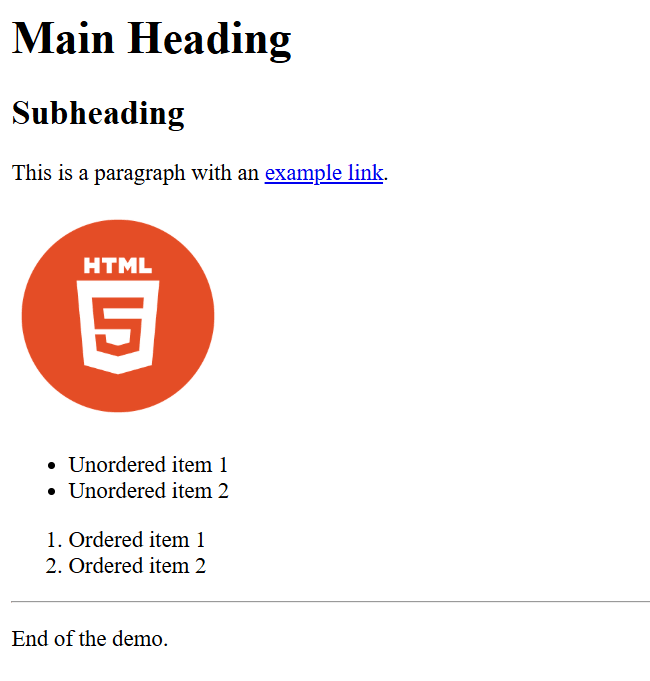
👉 After running the code above in your browser, you’ll see a simple web page that includes headings, a paragraph with a link, an image, lists, and a horizontal line — just like the example shown below.
- What does HTML stand for?
- What is the difference between <head> and <body>?
- Which tag is used to add a paragraph?
- What will happen if you forget to close a tag like <p>?
What does HTML stand for?
→ HTML stands for HyperText Markup Language. It is the standard language used to create and structure web pages.What is the difference between
<head>and<body>?
→ The<head>contains metadata about the page (like the title, character encoding, and links to CSS or JavaScript files).
→ The<body>contains the visible content of the page, like headings, text, images, and links.Which tag is used to add a paragraph?
→ The<p>tag is used to create a paragraph in HTML.What will happen if you forget to close a tag like
<p>?
→ The browser may still try to display the text, but it can cause unexpected layout issues or incorrect rendering. It’s best to always close your tags properly.