
HTML Document Structure
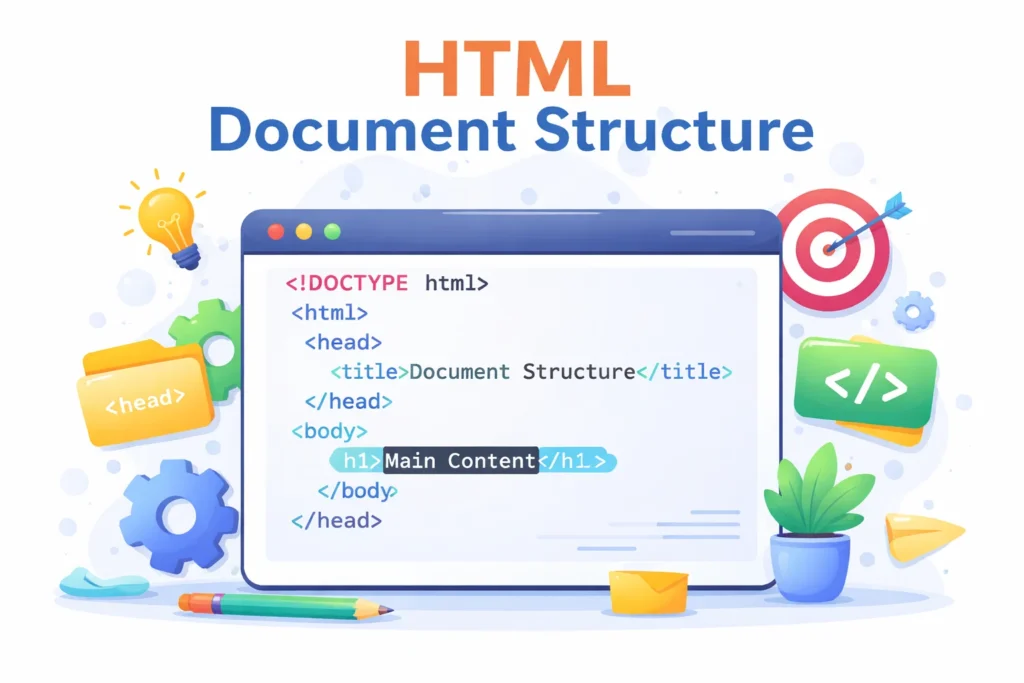
HTML Document Structure
Before a web browser can display a beautifully styled website, it first needs a well-organized HTML document. Just like a house needs a solid blueprint, every web page begins with a clear structure that defines what goes where. This structure isn’t just about order — it’s about clarity, consistency, and communication between your code and the browser. In this section, we’ll explore the essential components that form the backbone of every HTML page.
1. What is the Structure of an HTML Document?
Every HTML file follows a specific structure that helps the browser read and display the content properly.
Think of it like a blueprint of a house:
- The foundation = <!DOCTYPE html>
- The outer walls = <html>…</html>
- The information panel = <head>…</head>
- The visible rooms = <body>…</body>
2. Full Skeleton of an HTML Document Structure
A valid HTML page starts with a minimal—but precise—structure. Each line below helps the browser understand what the document is, how to parse it, and what to render to users.
					<!DOCTYPE html>
<html lang="en">
  <head>
    <meta charset="UTF-8" />
    <title>Page Title</title>
    <meta name="viewport" content="width=device-width, initial-scale=1" />
    <meta name="description" content="Short summary of the page for SEO/snippets." />
    <!-- <link rel="stylesheet" href="styles.css" /> -->
    <!-- <link rel="icon" href="/favicon.ico" /> -->
  </head>
  <body>
    <h1>Main Heading</h1>
    <p>Paragraph content goes here.</p>
    <!-- <script src="app.js" defer></script> -->
  </body>
</html>
🧠 Line-by-line: what each part does:
<!DOCTYPE html>
Declares HTML5 so the browser uses standards mode (correct, modern rendering).
- This is the document type declaration.
- It tells the browser: “Hey! This page uses HTML5.”
- Must be at the very top of every HTML file.
- Not a tag, just an instruction.
<html lang="en"> … </html>
Wraps everything on the page. The lang attributes improves accessibility, SEO, and screen-reader behavior (set it to your page language, e.g., lang=”fr” or lang=”ar”).
- This is the root element of the entire HTML page.
- Everything inside your page lives between these tags.
<head> … </head>
Holds metadata (not visible content): character encoding, title, viewport, SEO description, stylesheets, icons, etc.
- <meta charset=”UTF-8″ /> : Ensures correct encoding for all languages/symbols (prevents “garbled” characters).
- <title>Page Title</title> : The browser tab title and the default title shown in search results. Keep it descriptive (≈ 50–60 chars).
- <meta name=”viewport” content=”width=device-width, initial-scale=1″ /> : Makes the layout responsive on mobile (essential for usability and SEO).
- <meta name=”description” … /> : A concise summary (≈ 140–160 chars). Often used as the search snippet.
- link rel=”stylesheet” / link rel=”icon” (optional) : Attach your CSS and favicon. Keep CSS in external files for caching and performance.
<body> … </body>
This is the main part of the page that the user sees. Contains the visible page content.
- <h1>Main Heading</h1>
The primary page heading—use one <h1> per page. Subsections use <h2>–<h6>. - <p>Paragraph content goes here.</p>
A paragraph of text. Use semantic tags (e.g., <section>, <article>, <nav>, <footer>) to structure larger pages. - <script src=”app.js” defer></script> (optional)
Loads JavaScript without blocking rendering. Prefer to defer for performance.
Everything that appears on the screen is placed here, in the body tag
The “HTML Document Anatomy” below breaks down the essential building blocks of a web page — from the document declaration to the body content. Each tag has a specific role, and together they form the skeleton of every web page.
					<!DOCTYPE html>              → Declares HTML5

<html>                       → Starts the HTML document
  <head>                     → Metadata (not visible on page)
    <meta charset="UTF-8">   → Character encoding
    <title>My Page</title>   → Appears in browser tab
  </head>

  <body>                     → Visible page content
    <h1>Hello</h1>
    <p>This is my page</p>
  </body>
</html>                      → End of HTML
✅ 5. Best Practices
- Always use <!DOCTYPE html> at the top.
- Keep your tags properly nested and indented.
- Close all tags properly (even optional ones like <p>).
- Use lowercase for tag names (recommended in HTML5).
- Add <meta charset=”UTF-8″> inside <head> for proper text display.
- Always include <title> — it helps with SEO and browser labels.
- What does <!DOCTYPE html> do?
- Where do you put content that users will see?
- What tag shows the page title in the browser tab?
- Is <head> content visible on the page?
- What does
<!DOCTYPE html>do?
→ It tells the web browser that this page is written in HTML5, the latest version of HTML. This helps the browser display the page correctly. - Where do you put content that users will see?
→ All the visible text, images, and links go inside the<body>tag. Everything inside the body is what appears on the web page when someone opens it in their browser. - What tag shows the page title in the browser tab?
→ The<title>tag inside the<head>section controls the name that appears at the top of the browser tab or window. It’s also what search engines show as the page title in results. - Is
<head>content visible on the page?
→ No. The<head>contains information about the page (like the title, language, and links to styles or scripts). This information helps the browser and search engines, but it doesn’t appear on the screen.