
HTML Lists
HTML Lists
If you’re learning HTML, one of the first building blocks you’ll use over and over is the HTML list. Lists help you group related items, outline steps, and make content easier to scan—whether you’re writing instructions, menus, or article summaries. In this guide, you’ll learn how to create Ordered Lists (<ol>) and Unordered Lists (<ul>), when to use each one, and how to nest and structure them correctly. You’ll also see practical examples you can copy, plus a quick quiz to check your understanding.
Why HTML Lists Matter
When you present information as a list, you make it easier for users and search engines to understand your page. Screen readers can navigate lists, and search engines recognize list structure as a meaningful way to organize content. For you, lists provide a clean, readable structure without extra styling or complexity. You’ll mainly work with two list types:
- Unordered Lists (<ul>) — bullet points where order doesn’t matter.
- Ordered Lists (<ol>) — a numbered sequence where order matters, like steps in a process.
Both list types use list items (<li>) to hold the content of each point.
HTML Unordered Lists
Use an Unordered List when the sequence of items isn’t important. Think of shopping lists, feature lists, or article key points.
When to use <ul>:
- Listing features of a product
- Grouping resources, links, or references
- Creating navigation menus (the semantic structure is a list of links)
- etc…
					    <p>Basic Unordered Lists</p>
    <ul>
      <li>Apples</li>
      <li>Bananas</li>
      <li>Oranges</li>
    </ul>
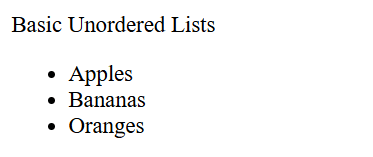
Pro tip: Even without visual styling, a <ul> communicates to assistive technologies that you’re listing related items. This improves accessibility.
HTML Ordered Lists
Use an Ordered List when order is meaningful—like steps in a tutorial, rankings, or procedures.
					    <p>Basic Ordered Lists:</p>
    <ol>
      <li>Preheat the oven to 350°F.</li>
      <li>Mix the ingredients.</li>
      <li>Bake for 25 minutes.</li>
    </ol>
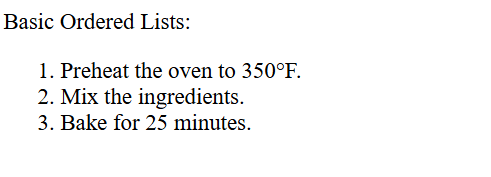
When you create an ordered list in HTML, you’re not limited to the default numbered style that starts at 1. HTML gives you extra control through a few useful attributes that make your lists more flexible and expressive. These attributes—start, reversed, and type—let you decide where your list begins, whether it counts up or down, and how the numbers or letters are displayed. Understanding how to use them helps you design lists that fit your content’s structure and style perfectly.
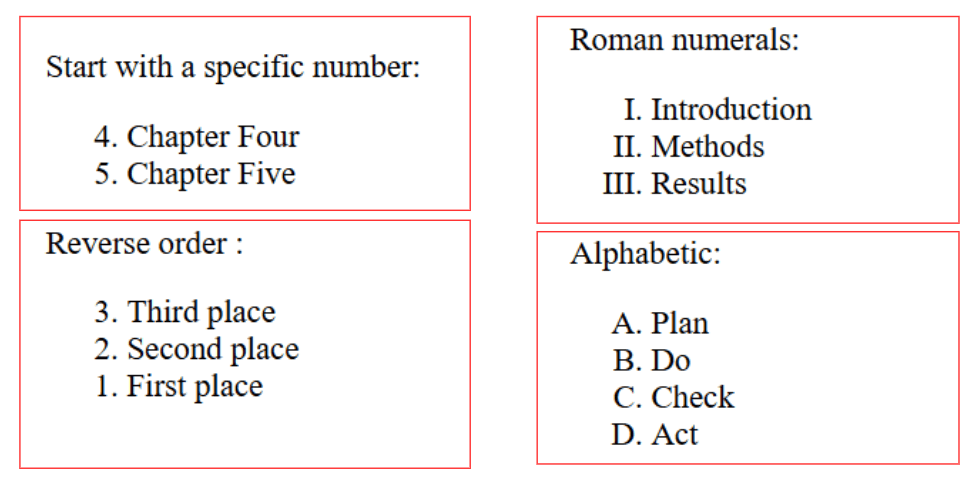
Ordered List Attributes You’ll Actually Use :
- start — sets the starting number.
- reversed — counts down instead of up.
- type — changes numbering style (e.g., 1, A, a, I, i).
					<p>Start with a specific number:</p>
    <ol start="4">
      <li>Chapter Four</li>
      <li>Chapter Five</li>
    </ol>

    <p>Reverse order :</p>
    <ol reversed>
      <li>Third place</li>
      <li>Second place</li>
      <li>First place</li>
    </ol>

    <p>Roman numerals:</p>
    <ol type="I">
      <li>Introduction</li>
      <li>Methods</li>
      <li>Results</li>
    </ol>

    <p>Alphabetic:</p>
    <ol type="A">
      <li>Plan</li>
      <li>Do</li>
      <li>Check</li>
      <li>Act</li>
    </ol>
Nesting HTML Lists
Sometimes you need sub-points under a main point. That’s where nested lists come in: you place a <ul> or <ol> inside an <li>.
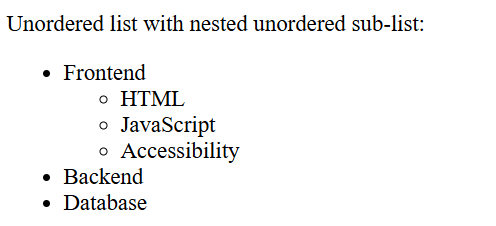
📌 Unordered list with nested unordered sub-list:
					 <p>Unordered list with nested unordered sub-list:</p>
    <ul>
      <li>
        Frontend
        <ul>
          <li>HTML</li>
          <li>JavaScript</li>
          <li>Accessibility</li>
        </ul>
      </li>
      <li>Backend</li>
      <li>Database</li>
    </ul>
📌Ordered list with nested ordered sub-list:
					 <p>Unordered list with nested unordered sub-list:</p>
    <ul>
      <li>
        Frontend
        <ul>
          <li>HTML</li>
          <li>JavaScript</li>
          <li>Accessibility</li>
        </ul>
      </li>
      <li>Backend</li>
      <li>Database</li>
    </ul>
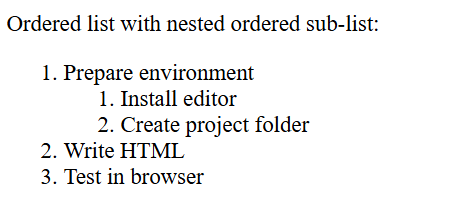
Mixing list types: You can nest a <ul> inside an <ol> (or the reverse) if that matches your content logic. For example, steps with unordered options:
					<p>Mixing Nested list types</p>
<ol>
  <li>Choose a plan
    <ul>
      <li>Basic</li>
      <li>Pro</li>
      <li>Enterprise</li>
    </ul>
  </li>
  <li>Enter payment details</li>
</ol>
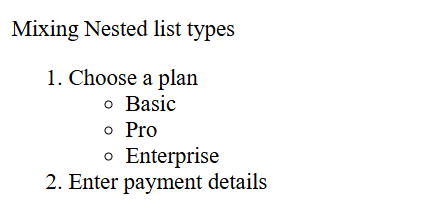
Important: Always put nested lists inside the parent <li>. Don’t place a sibling <ul> or <ol> directly after an <li> as a separate element unless you’re starting a new list.
Accessibility & Semantics: Best Practices
Using the right list for the right purpose improves your page for everyone:
Choose
<ul>when order doesn’t matter; choose<ol>when it does. This helps screen reader users understand the meaning of your content.Use
<li>for each point. Don’t replace list items with line breaks—they won’t be announced as a list.Add helpful labels. If a list is a navigation menu, wrap it in
<nav>and usearia-labelto describe it, like<nav aria-label="Main">.Keep lists focused. Long, cluttered lists are hard to navigate. Break them into smaller lists with clear headings when possible.
Mastering HTML lists helps you present information clearly and accessibly. Use unordered lists (<ul>) for bullets when order isn’t important and ordered lists (<ol>) for steps, rankings, or procedures. Keep each <li> focused, place any nested list inside its parent <li>, and reach for start, type, and reversed when numbering needs control. With these habits, your pages become easier to scan, better for screen readers, and more SEO-friendly—exactly what you want when working with HTML, Ordered Lists, and Unordered Lists.